
-
Products
Overview
-
myQ App
Overview -
Plans
Overview -
Works with myQ
Overview
-
Properties & Facilities
Overview
Support
-
account_circle My Account
Overview
-
Support
- account_circle My Account
-
 Added to your cart
Frequently added together
 0
0
myQ Connected Garage + Tesla
Let’s Get Started
Do you have a myQ Connected Garage?
1
Link myQ to your Tesla
Be sure your Tesla is parked safely and navigate to the Vehicle Settings icon. Tap the garage door icon. Next, tap Link myQ Account.
2
Scan the QR Code
Using your mobile device, scan the QR code. You will be taken to a myQ page where you can sign in to your myQ account. Follow the step-by-step instructions on your phone to link your myQ account to your Tesla and start your free trial.
3
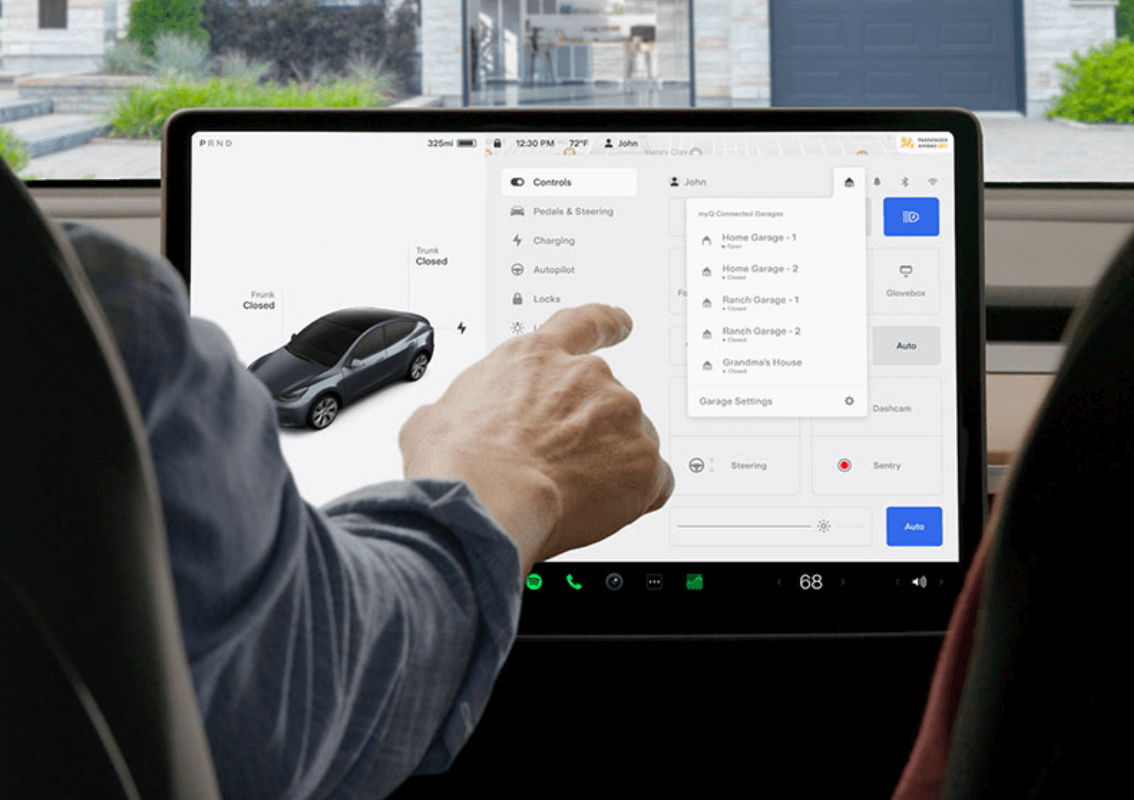
Congratulations, you're all set up!
You'll be able to see all your connected garage doors on your touchscreen and customize your settings based on your lifestyle.
Start enjoying in-vehicle control!
1
Link myQ to your Tesla
Be sure your Tesla is parked safely and navigate to the Vehicle Settings icon. Tap the garage door icon. Next, tap Link myQ Account.
2
Scan the QR code
Using your mobile device, scan the QR code. You will be taken to a myQ page where you can create a myQ account. Follow the step-by-step instructions on your phone to link your myQ account to your Tesla and start your free trial.
3
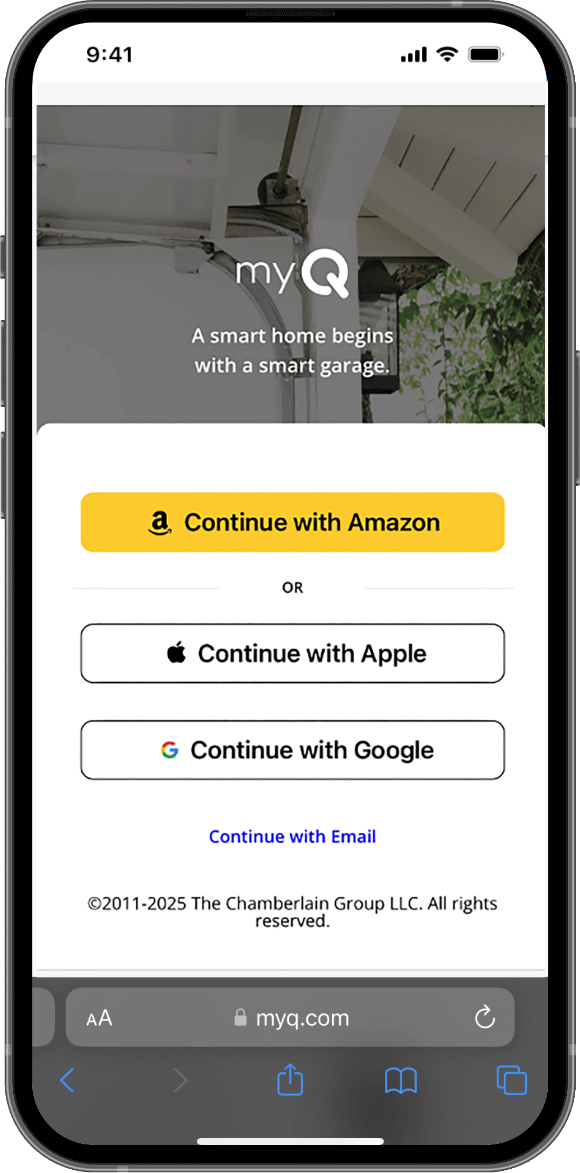
Download the myQ app
Download the myQ app. Available in the Apple App Store or Google Play. Register and follow the instructions inside the app to complete your setup.
4
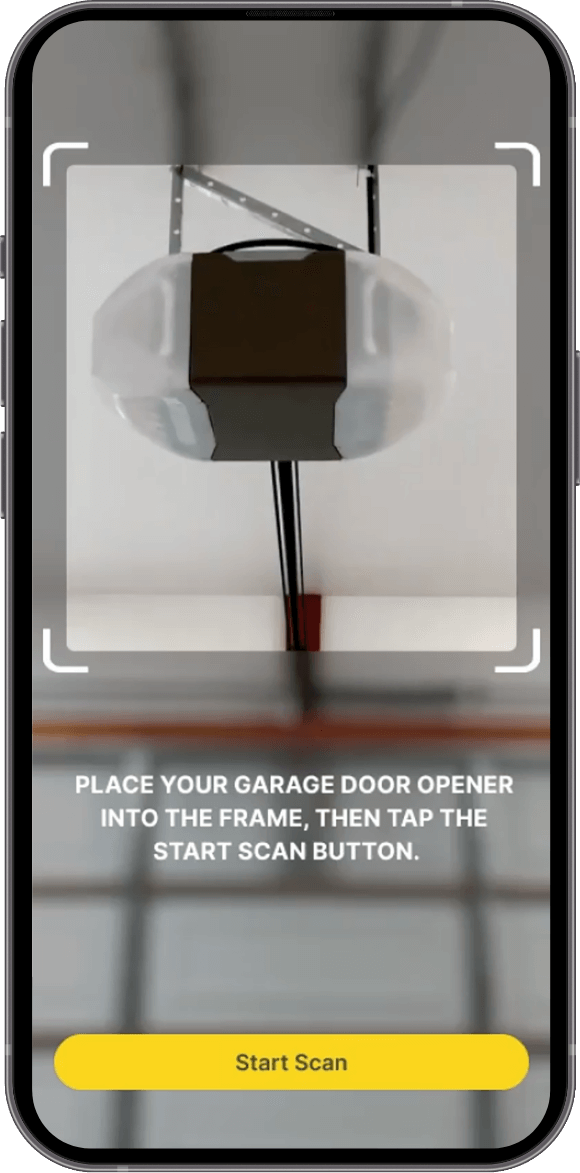
Check your garage door opener’s compatibility
Follow the instructions from the Compatibility Tool in the myQ app. For non-compatible garage door openers, you’ll be able to get your garage door connected with a discounted Smart Garage® Control hub when you use your Tesla touchscreen and the myQ app.
5
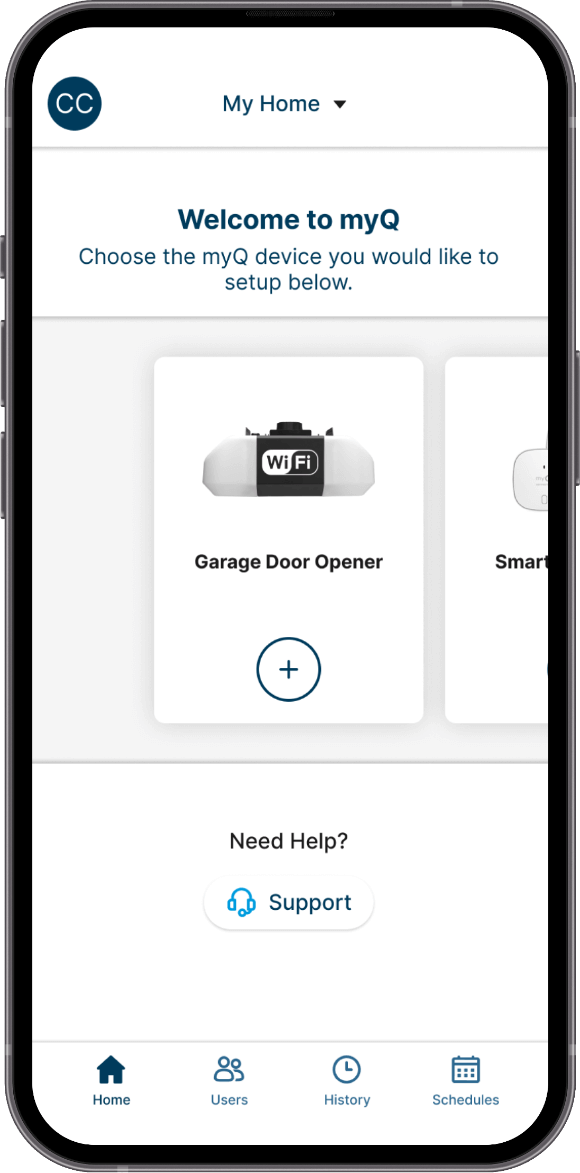
Connect your garage
If you’ve already connected your Wi-Fi garage opener to myQ, skip this step, or connect it now. If you obtained a new myQ Smart Garage® Control or Wi-Fi garage opener, use the myQ app and connect to it now.
6
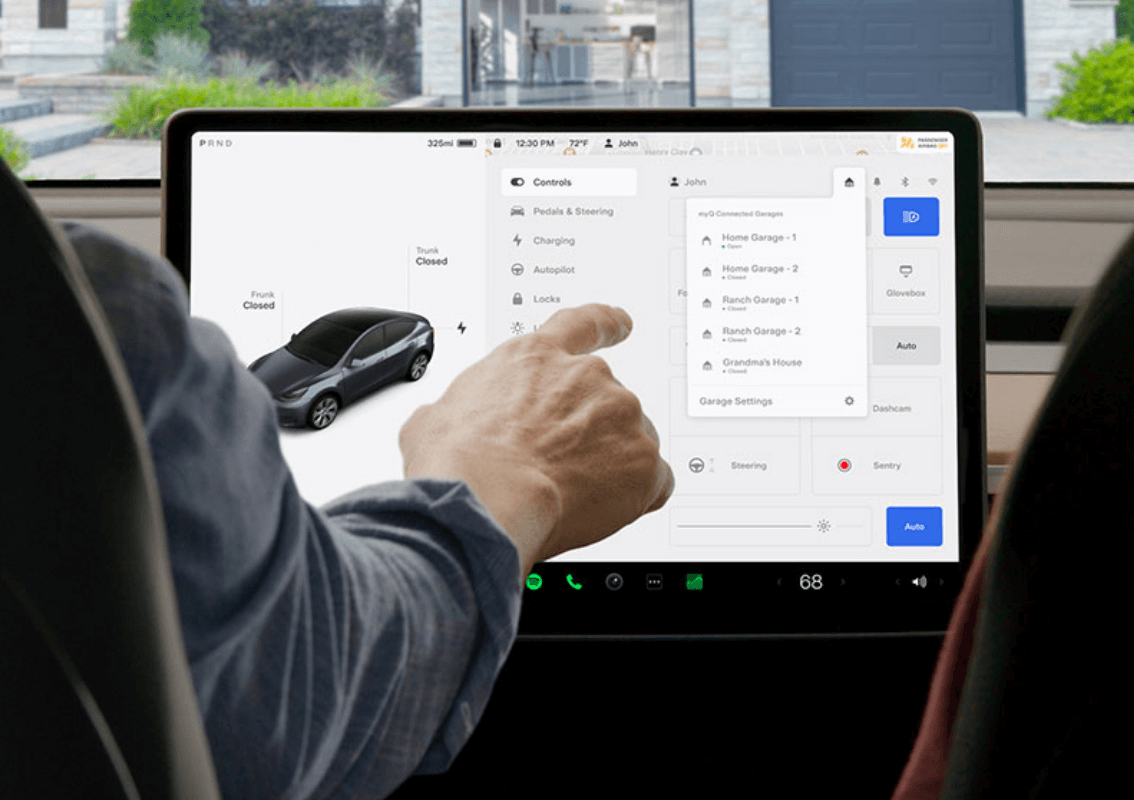
Congratulations, you’re all set up!
You’ll be able to see all your connected garage doors on your touchscreen and customize your settings based on your lifestyle. Start enjoying in-vehicle control!
Get started with myQ Connected Garage + Tesla
Here’s what you’ll need

Compatible Tesla vehicle

myQ app

Wi-Fi compatible
garage opener
Experience myQ Connected Garage
With myQ smart technology, ALL Tesla Model 3, Model Y, Cybertruck and 2021+ Model S and Model X have the power to automatically open and close the garage whether you're coming home or heading out. Get started right from your Tesla touchscreen and try myQ Connected Garage with a 30-day free trial!
Tesla Experience Connect Features

Automatic open and close
Geofenced open and close allows automatic, hands-free control of your garage. You can even set your preferred geofence distance for your garage to open automatically.

Touchscreen control
Never wonder if you left your garage door open again. Open, close and monitor your garage door—safely from your touchscreen.

Multiple vehicle connectivity
Your single myQ subscription works across multiple Tesla vehicles. No matter how large your fleet gets everyone can be connected to the smart garage for seamless access. Your subscription can even be transferred to another Tesla during its term.

Smart garage monitoring
With myQ Connected Garage you can see the status of every garage door that’s connected to your Tesla. Your myQ will know not to close an already open garage door so there’s no confusion when you arrive home.
Feature comparison
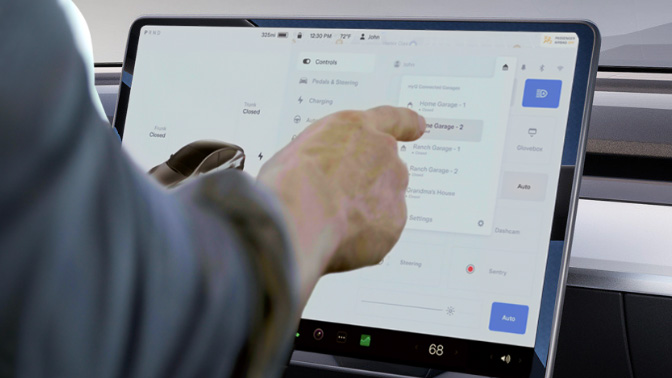
myQ Connected Garage
 | Automatic open and close |
| Monitor & control your garage from anywhere |
| Immediate close without beeping and flashing |
| Immune to Wi-Fi grey zones |
| Supports multiple Tesla vehicles with one subscription |
| Includes FREE Smart Garage Control ($29.99 USD value) – just pay $0.99 USD handling |
myQ App
 | Monitor & control your garage from anywhere |
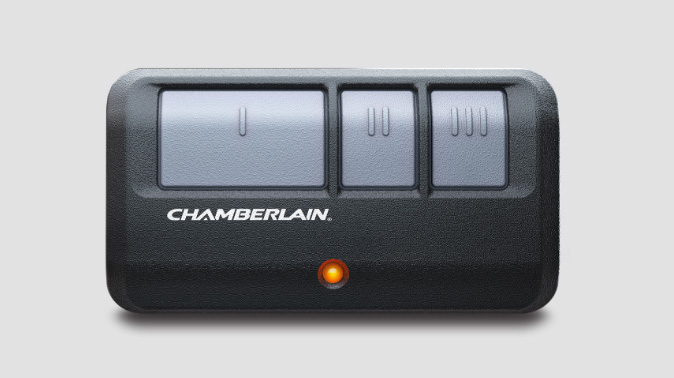
Garage Remote Control
| Control your garage from your driveway |
| Immediate close without beeping and flashing |
| Immune to Wi-Fi grey zones |
Frequently Asked Questions
How to link your Tesla to myQ Connected Garage

This article will provide step-by-step guidance on how to link Tesla to myQ Connected Garage
Prior to linking, please ensure you have an active myQ account with active myQ devices, and you are signed in to your myQ app.
On your Tesla center touchscreen, complete the following:
- Be sure your Tesla is parked safely and navigate to the Vehicle Settings icon

- Tap the garage door icon in the upper right of your touchscreen

- Tap “Link myQ Account” from the pull-down menu
- Using your mobile device, scan the QR code
-
You will be redirected to a myQ Begin Trial page
- • Review the 30-day trial details and Tap Begin Trial
-
You will be presented a Trial Started page
- • You can select a plan to purchase now—you will not be charged until the trial ends
OR - • You can tap Purchase Later, then tap Finish to complete
- • You can select a plan to purchase now—you will not be charged until the trial ends
- Your Tesla is now linked with myQ Connected Garage
Which Tesla Models are compatible with myQ Connected Garage?
All Tesla Model 3, Model Y, Cybertruck and 2021 + Model S and Model X.
What service plan options are available for myQ Connected Garage + Tesla functionality?
There are three service plan options available:
- 1 year: $45 (auto-renewing)
- 5 years: $179 (auto-renewing)
- 10 years: $299 (one-time purchase)
How to set up the Auto Open, Auto Close feature?
Note: Before starting, please confirm the following:

- Ensure that your myQ account is already linked to your Tesla. For assistance linking your myQ account, see “How to link your Tesla to myQ Connected Garage” FAQ
- Ensure your vehicle is in front of the garage door. Be sure to leave enough room for the garage door to open or close.
- Tap the Vehicle Settings icon

- Tap Controls
- On the Top/Right, Tap the Garage Door icon

- Here you will see a list of available myQ Garage Connected Garages
- Tap the Garage Door you wish to configure and tap Set Garage Location
- If you would like the Garage Door to automatically open upon your arrival, enable Auto Open on arrival
- You may set the desired distance to auto-open the garage door upon arrival
- If you would like the Garage Door to automatically close upon your exit, enable Auto Close on departure
- If you would like the Garage Door to automatically open upon your arrival, enable Auto Open on arrival
Note: If you wish to hear a Chime when the Auto-Open/Auto-Close feature is activated, enable the feature on the bottom/left of your myQ Connected Garage screen
For more support articles, please visit our dedicated Tesla Support Site.
